Dashboard is a Graphical User Interface helping Biomoby service providers to develop and deploy their Biomoby services. Because of its extensibility, a new panel, the Perl-MoSeS Generator was created to ease the development of Perl based Biomoby web services.
The following tutorial is a step by step process of developing a Perl based service using Dashboard and the new panel. By the end of this tutorial, you should be able use and understand all of the features of the Perl-MoSeS Generator panel.
Note: most of the information for this tutorial was derived from the following documents:
For details on Dashboard, please go to the Dashboard documentation page.
The generator panel is a user-interface to the Perl MoSeS sub-project. MoSeS stands for Moby Services Support and its documentation is available here.
In order to use the Perl-MoSeS Generator panel, you will have to ensure that you (or your sys admin) have installed Perl and the CPAN module MOSES::MOBY. Once that module has been installed and you have performed the user configuration step (moses-install.pl), you will be able use the panel!
Once again, the panel is only useful in those situations that you have installed the CPAN module 'MOSES::MOBY' and have run the user configuration script 'moses-install.pl'!
Adding the Perl-MoSeS Generator Panel to Dashboard
Once you have started up dashboard, one the very first things that you will have to do is to add the Perl-MoSeS Generator panel to Dashboard's displayed panels.
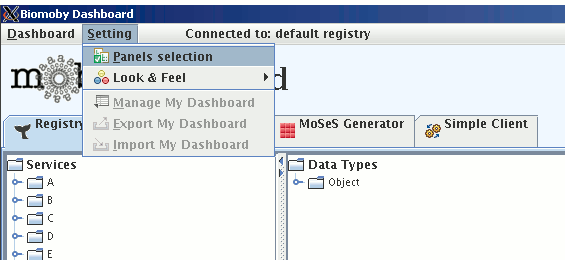
In order to this, you will have to click on the toolbar item 'Setting' and choose 'Panels selection'.
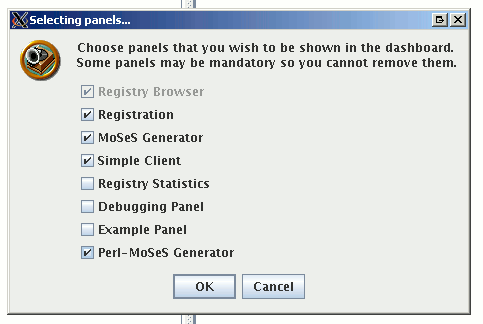
You should now see the 'selecting panels...' window. From there, make sure that the 'Perl-MoSeS Generator' has a check by its' name! Once you are done, click on 'OK'
After clicking on OK, you will now notice another tab present in Dashboard's main display. The tab should be labelled as 'Perl-MoSeS Generator'. Please go ahead and click on that tab.
Exploring the Perl-MoSeS Generator Panel
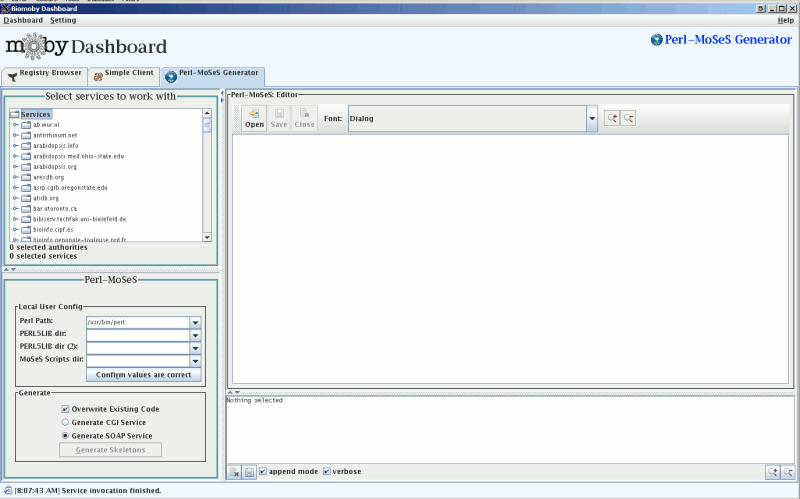
Once the panel has been added to Dashboard and you have selected it, you should see something like the image below.
Basically, the panel consists of a 'Biomoby Service Tree' located on the upper left side of the main panel, a 'Perl-MoSeS' action panel located on the lower left side of the main panel, a built in 'Editor' on the top right side of the main panel and a log window located on the lower right side of the main panel.
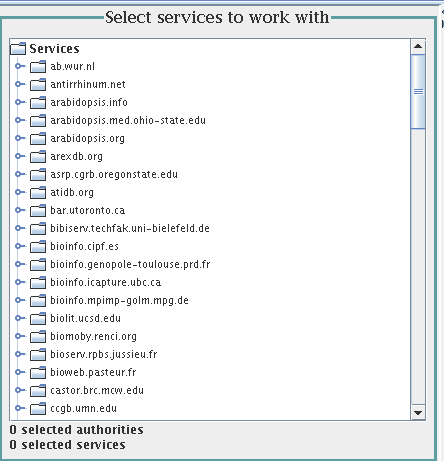
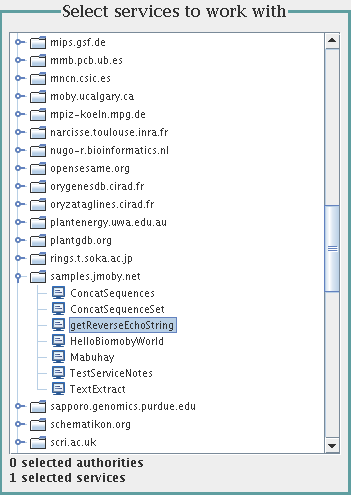
The service tree is used to select a service, or group of services, to operate on. You can select a single service or a bunch of services by using the 'control' key on your keyboard.
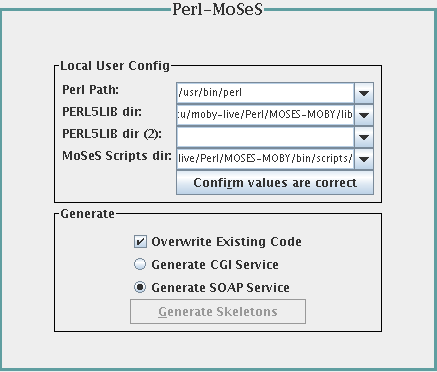
The 'Perl-MoSeS' action panel consists of 2 items.
One of the items is the 'Local User Config' sub panel. Don't be surprised if this sub panel is not visible on your screen! This sub panel only shows up when the Perl-MoSeS Generator panel needs extra information from you regarding the location the MOSES-MOBY source code. This only occurs whenever the MOSES-MOBY module was not installed system wide in the default perl location.
For information on how to set up this aspect of the Perl-MoSeS Generator, please click here.
The second item is the 'Generate' sub panel. This panel always shows up and provides you with the tools needed to generate Perl code for the services that you select from the Service Tree mentioned above.
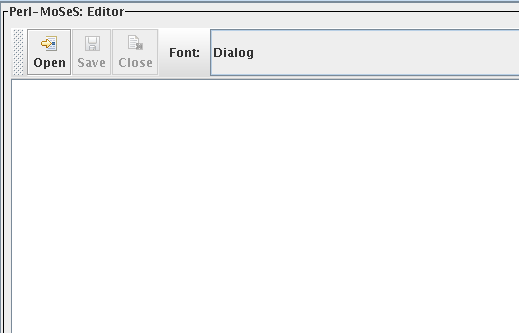
The Perl-MoSeS Editor is a full fledged text editor that you can use to implement your perl web services. One of the nice features of this editor is its built in syntax highlighter.
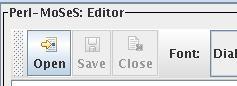
The editor contains buttons for opening, saving and closing your Perl scripts. It also has a font chooser and text enlarge and shrink buttons.
The log window located below the Editor is used by the Generator panel for displaying any messages (including error messages) written out by the panels interaction with MOSES::MOBY.
Configuring the Perl-MoSeS Generator Panel *
For those of you that do not have root access to your machine, you may have had to install the module MOSES::MOBY locally. As a result, the Perl-MoSeS Generator panel will not be aware of the custom Perl library location used by you when you installed the module. In order to successfully use this panel, you will need to enter some information for panel to use.
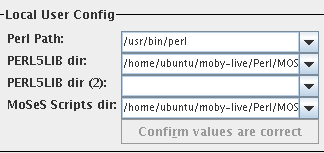
The Local User Config sub panel allows you to specify:
- Perl Path - this is the path to the PERL executable, for instance, /usr/bin/perl [required]
- PERL5LIB dir - a directory to add to Perls' @INC [required]
- PERL5LIB dir (2) - another directory to add to Perls' @INC [optional]
- MoSeS Scripts Dir - the directory that contains the moses-*.pl scripts [required]
Once this information is entered, and the 'Confirm values are correct' is clicked, we check whether the required MOSES scripts are accessible and even try to run one. If everything is deemed to be fine, the Generate sub panel is enabled. Otherwise, you will be prompted to check your values.
Help on setting your local user configuration
Some users find this information hard to obtain. One trick that I use, is to enter 'perl -V' at the command prompt. Among other things, one of the last things that you will see displayed is something like:
Built under linux
  Compiled at Nov 27 2007 10:44:36
  @INC:
    /etc/perl
    /usr/local/lib/perl/5.8.8
    /usr/local/share/perl/5.8.8
    /usr/lib/perl5
    /usr/share/perl5
    /usr/lib/perl/5.8
    /usr/share/perl/5.8
    /usr/local/lib/site_perl
    .
Keeping the above in mind and remembering that when you installed (locally for just you and not system wide!) MOSES-MOBY from the command prompt, you specified a PREFIX=/some/path/, similar to the following:
perl Makefile.PL PREFIX=/home/ekawas/usr/localThe values that you would then enter for PERL5LIB are:
- /home/ekawas/usr/local/lib/perl/5.8.8
- /home/ekawas/usr/local/lib/site_perl
In other words, you are interested in using the PREFIX/lib/ directories.
The value that you should set for the 'MoSeS Scripts Directory' are usually located in the PREFIX/bin/ directory.
Here we will talk first about how to go about implementing a category 'moby', i.e. SOAP based Biomoby web service. Then we will talk about how to implement a category 'cgi', i.e. a HTTP post Biomoby service. Both services share a common business logic and therefore, we will talk about how to implement the business logic at the end of this section.
In order to implement a Biomoby service, we must first register one in the registry of our choosing.
We can register a service using a perl script or one of the many GUIs created by the Biomoby developers. This tutorial will be using a simple perl script, but you are invited to try to use Dashboard.
The service that we will be registering is going to be a simple echo service. To spice things up a little bit, our service will echo the reverse string that it receives.
The script that we will use for registering our service is shown below:
#!/usr/bin/perl -w
use strict;
use MOBY::Client::Central;

# instantiate a client to mobycentral
my $m = MOBY::Client::Central->new(
    Registries => { mobycentral => {
                       URL => "http://moby.ucalgary.ca/moby/MOBY-Central.pl",
                       URI => "http://moby.ucalgary.ca/MOBY/Central",
                     },
                  }
);

# give our new service a name
my $serviceName = "getReverseEchoString";

# give our service a service type
my $serviceType = "TutorialService";

# the uri of the service provider
my $authURI = "samples.jmoby.net";

# the email address of the service provider
my $email = 'your.email@domain.com';

# the url to our dispatcher file
# for more information on this url, visit
# http://search.cpan.org/dist/MOSES-MOBY/lib/MOSES/MOBY.pm#Quick_Start_-_Five_Steps_to_the_First_Service
# paying attention to point #4
my $URL = "http://localhost/cgi-bin/MobyServer.cgi";

# a small description of what our service does
my $description = "This service consumes a string of text and returns the reverse string back to the caller";

# the inputs to our service
my @input_namespaces = ();
my @input_simples = ('String', \@input_namespaces);
my @input_articles = ('my_input_string', \@input_simples);
my @all_inputs = (\@input_articles);

# the outputs to our service
my @output_namespaces = ();
my @output_simples = ('String', \@output_namespaces);
my @output_articles = ('my_reverse_string', \@output_simples);
my @all_outputs = (\@output_articles);

# register the service
my $REG = $m->registerService(
          serviceName  => $serviceName,
          serviceType  => $serviceType,
          authURI      => $authURI,
          contactEmail => $email,
          description  => $description,
          category     =>  "moby",
          URL          =>  $URL,
          input        => \@all_inputs,
          output       => \@all_outputs,
          secondary    => undef,
      );

# where we successful?
$REG->success?print "Success!\n":print "Failure: ",$REG->message,"\n";

# END of Script
The above script will register the service getReverseEchoString into the registry. Further discussion on the registering of services is beyond the scope of this tutorial. For more information on that topic, please visit the Biomoby homepage.
In order to generate the code that our service will use, we must first select the service that we are interested in from the Service Tree. We will find and select the service 'getReverseEchoString' provided by 'samples.jmoby.net' in the tree.
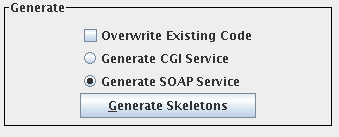
Once the service has been selected, all that is left in order to generate our service let the Perl-MoSeS Generator know that we would like to 'Generate SOAP Service' and to then click on the 'Generate Skeletons' button. If you check the 'Overwrite Existing Code' checkbox, you risk having your skeletons, and any business logic contained therein, erased and replaced with empty skeleton code.
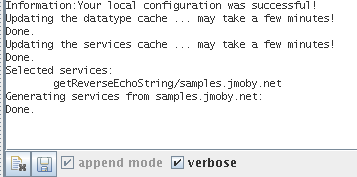
Assuming that all there were no errors, we just issued the command to:
- automatically generate a perl module called getReverseEchoString.pm
- update a file called SERVICES_TABLE
This file contains a mapping of biomoby soap services to perl modules and is used by the SOAP perl modules.
We are now ready to implement the business logic of our service! Click here to proceed!
In order to implement a Biomoby service, we must first register one in the registry of our choosing.
We can register a service using a perl script or one of the many GUIs created by the Biomoby developers. This tutorial will be using a simple perl script, but you are invited to try to use Dashboard.
The service that we will be registering is going to be a simple echo service. To spice things up a little bit, our service will echo the reverse string that it receives.
The script that we will use for registering our service is shown below:
#!/usr/bin/perl -w
use strict;
use MOBY::Client::Central;

# instantiate a client to mobycentral
my $m = MOBY::Client::Central->new(
    Registries => { mobycentral => {
                       URL => "http://moby.ucalgary.ca/moby/MOBY-Central.pl",
                       URI => "http://moby.ucalgary.ca/MOBY/Central",
                     },
                  }
);

# give our new service a name
my $serviceName = "getReverseEchoString";

# give our service a service type
my $serviceType = "TutorialService";

# the uri of the service provider
my $authURI = "samples.jmoby.net";

# the email address of the service provider
my $email = 'your.email@domain.com';

# the url to our dispatcher file
# for more information on this url, visit
# http://search.cpan.org/dist/MOSES-MOBY/lib/MOSES/MOBY.pm#Quick_Start_-_Five_Steps_to_the_First_Service
# paying attention to point #4
my $URL = "http://localhost/cgi-bin/$serviceName.cgi";

# a small description of what our service does
my $description = "This service consumes a string of text and returns the reverse string back to the caller";

# the inputs to our service
my @input_namespaces = ();
my @input_simples = ('String', \@input_namespaces);
my @input_articles = ('my_input_string', \@input_simples);
my @all_inputs = (\@input_articles);

# the outputs to our service
my @output_namespaces = ();
my @output_simples = ('String', \@output_namespaces);
my @output_articles = ('my_reverse_string', \@output_simples);
my @all_outputs = (\@output_articles);

# register the service
my $REG = $m->registerService(
          serviceName  => $serviceName,
          serviceType  => $serviceType,
          authURI      => $authURI,
          contactEmail => $email,
          description  => $description,
          category     =>  "cgi",
          URL          =>  $URL,
          input        => \@all_inputs,
          output       => \@all_outputs,
          secondary    => undef,
      );

# where we successful?
$REG->success?print "Success!\n":print "Failure: ",$REG->message,"\n";

# END of Script
The above script will register the service getReverseEchoString into the registry. Further discussion on the registering of services is beyond the scope of this tutorial. For more information on that topic, please visit the Biomoby homepage.
In order to generate the code that our service will use, we must first select the service that we are interested in from the Service Tree. We will find and select the service 'getReverseEchoString' provided by 'samples.jmoby.net' in the tree.
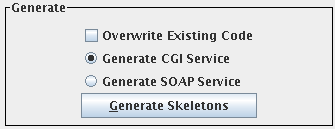
Once the service has been selected, all that is left in order to generate our service let the Perl-MoSeS Generator know that we would like to 'Generate CGI Service' and to then click on the 'Generate Skeletons' button. If you check the 'Overwrite Existing Code' checkbox, you risk having your skeletons, and any business logic contained therein, erased and replaced with empty skeleton code.
Assuming that all there were no errors, we just issued the command to:
- automatically generate a perl module called getReverseEchoString.pm (if it already exists, it won't overwrite it).
This file contains the implementation for our service and is what we edit to inject our business logic.- automatically generates a cgi script called getReverseEchoString.cgi.
This file is what we deploy on our web server that redirects cgi requests to our service to the getReverseEchoString.pm module above.
You might be wondering about the message in the log window that states something along the lines of,
Implementation '/home/ubuntu/Perl-MoSeS/services/Service/getReverseEchoString.pm' already exists. It will *not* be re-generatedBasically, the short answer is that CGI services and SOAP services share a common implementation file. So if you happen to generate the SOAP service before the CGI service (or vice versa), you will get a warning about the file already existing. However, the .cgi file is still created for your use!
We are now ready to implement the business logic of our service! Click here to proceed!
Now that we are ready to implement the business logic, we will have to find, open and edit the module getReverseEchoString.pm.
To open the implemetation file for editing, click on the 'Open' button from the Editors' Toolbar.
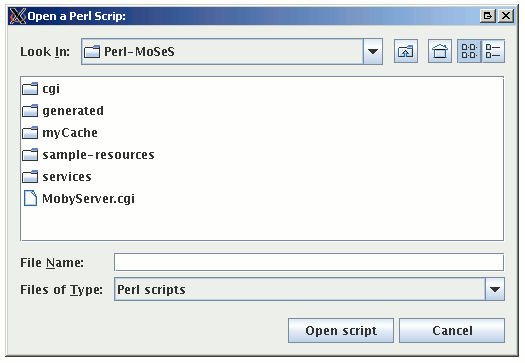
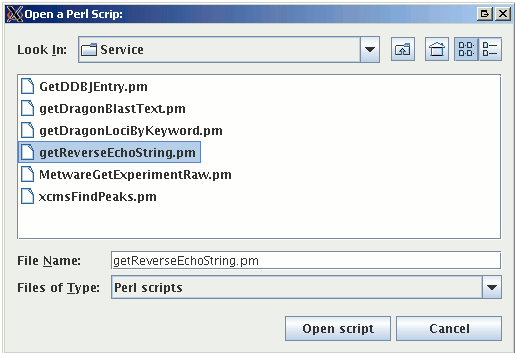
You will need to open the implementation file that was generated during the generation step above. The Generator panel attempts to seed the 'Open a Perl Script' file chooser with the correct directory, as in the image shown below.
Sometimes the Generator fails in seeding the correct directory and it will be up to you to find where the generated file is located. The easiest way to determine where the file is located, is to run the 'Generate Skeletons' again without checking the 'Overwrite Existing Code' checkbox. You should see a message in the log window regarding a file that was not overwritten. This is the file that we would like to edit!
Select the getReverseEchoString.pm file and 'Open Script'
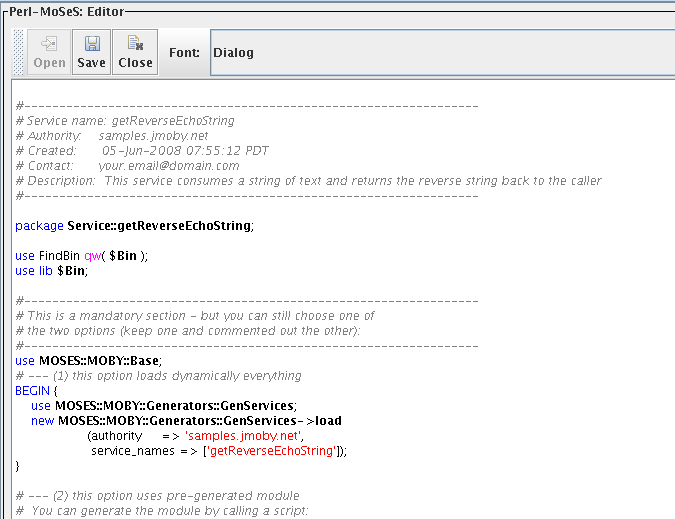
The editor then loads the file for you. Notice the syntax highlighting!
MoSeS automatically created this file for you and left just the subroutine process_it for you to code your implementation. Fortunately, MoSeS provides some sample code for you to see how the datatypes are manipulated, how to get/set service notes, etc.
my $my_input_string = eval { $request->my_input_string };The above snippet of code illustrates how MoSeS extracts the input data to our service.
If you recall, when we registered our service, we stated that our service consumes a String and gave that String the name (in Biomoby speak 'ArticleName') 'my_input_string'.
If you had more than one input to a service, you would be able to access them simply by doing a
$request->articleName_of_inputWhere articleName_of_input is the name that you gave the input when you registerd the service.
In the Biomoby world only datatypes that are considered primitives have values. Primitives include types such as String, Integer, Boolean, DateTime, Float, etc.
In MoSeS, these values can be get/set using the method 'value'.
So in our service implementation, we have to extract the value of the String in order to reverse echo it back to a user of our service.
my $string = $my_input_string->value if defined $my_input_string;
$string = "" unless defined $my_input_string;
Now that we have our string, we can reverse it,
$string = reverse $string;Now we can set the output of our service to have the value of our string by replacing:
# fill the response
my $my_reverse_string = new MOSES::MOBY::Data::String(
          value => "this is a value ",   # TO BE EDITED
);
with,
# fill the response
my $my_reverse_string = new MOSES::MOBY::Data::String(
          value => "$string",   # TO BE EDITED
);
Once we are done with those edits, we can save the file,
and then close it.
That is all there is to it.
We will now move on to deploying our service! Click here to proceed!
Deploying your services actually quite simple and differs based on whether you are deploying a SOAP service or a CGI service.
Unfortunately, deploying of your service cannot be done using Dashboard or the Perl-MoSeS Generator panel. You will have to deploy your services from the command line.
For more information, please check out the MOSES::MOBY documentation on deploying your services.
Deploying SOAP based Perl MoSeS services is very straight forward!
The only thing you need to do is to tell your Web Server where there is a starting cgi-bin script.
The cgi-bin script was already created during the installation in <your-home-directory>/Perl-MoSes/ directory and is called MobyServer.cgi.
Make a symbolic link from the cgi-bin directory of your Web Server (e.g on some Linux distributions, using Apache Web server, the cgi-bin directory is /usr/lib/cgi-bin) to the cgi-bin script.
For example:
cd /usr/lib/cgi-bin
sudo ln -s /home/ekawas/Perl-MoSeS/MobyServer.cgi .
You only have to do this once. In other words, all other SOAP based services that you construct using MoSeS automatically use that cgi-bin script, because the moses-generate-services.pl script updates the SERVICE_TABLE that we talked about earlier.
Deploying CGI based Perl MoSeS services is very straight forward!
If you recall, our services' cgi script was called getReverseEchoString.cgi and is generated into your <your-home-directory>/Perl-MoSes/cgi/ directory.All cgi files are created in this folder is sub-folders that represent the service providers authority URI.
The only thing you need to do is to tell your Web Server where the cgi script that we generated is located.
Make a symbolic link from the cgi-bin directory of your Web Server (e.g on some Linux distributions, using Apache Web server, the cgi-bin directory is /usr/lib/cgi-bin) to the cgi-bin script.
For example:
cd /usr/lib/cgi-bin
sudo ln -s /home/ekawas/Perl-MoSeS/cgi/samples/jmoby/net/getReverseEchoString.cgi .
Every time that you generate a cgi service using Perl MoSeS, you will have to perform an operation similar to this one for the service that you created in order to deploy it.